
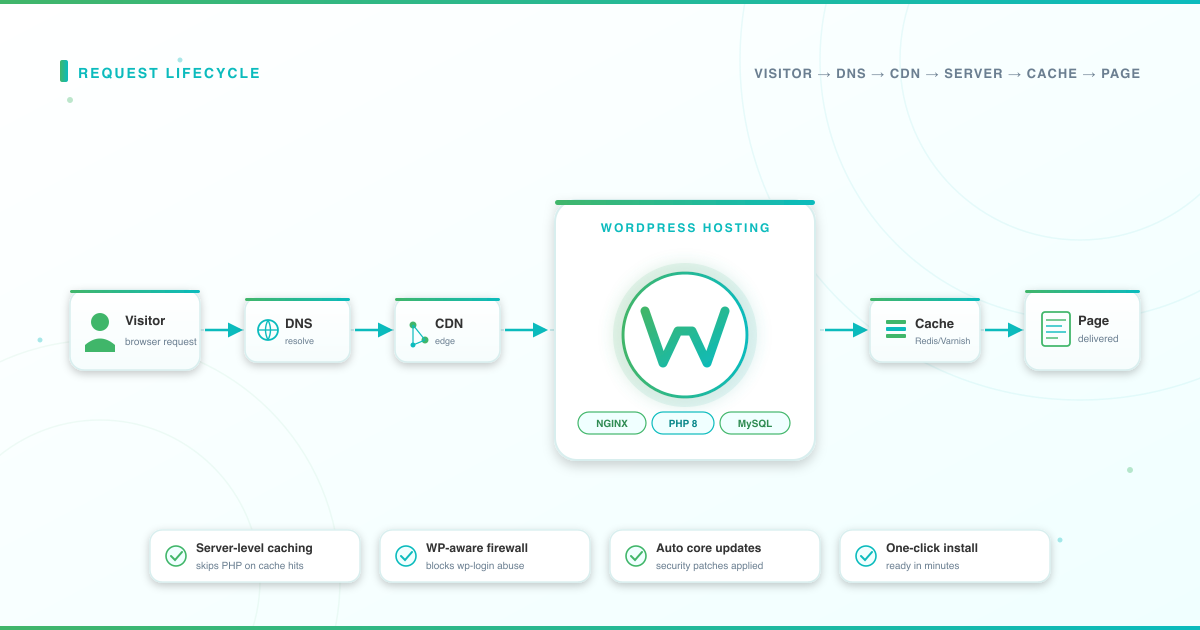



Every WordPress site sits on top of a hosting environment that decides how fast your pages load, how reliably your traffic holds up, and how well your content stays protected. Get the hosting right and the rest of your site gets easier.
So, how does WordPress hosting work, and why does it matter for your site? Understanding how WordPress hosting works gives you a real advantage — you’ll pick the right plan with confidence, troubleshoot faster when something breaks, and keep your site performing at its peak as you grow.
This guide covers the full picture: what WordPress hosting is, how it works under the hood (step by step), the WP-optimized server stack, managed vs unmanaged, how to choose a plan, setup, performance, security, troubleshooting, and what’s different about running a WordPress site from Ghana.
New to hosting in general? Start with our primer on what web hosting is and how it works, or, if you’re still choosing a CMS, see WordPress vs other CMS platforms.
What is WordPress hosting?
WordPress hosting is a server environment tuned specifically to run WordPress. It bundles a compatible PHP runtime, a MySQL or MariaDB database, WordPress-aware caching, and security rules that understand WordPress attack patterns — so your site loads faster, stays safer, and installs in minutes instead of hours.
Any server that runs PHP and MySQL can technically host WordPress. A WordPress-optimized host is purpose-built for the way WordPress assembles pages. Here’s what sets it apart from generic web hosting:
- Server-level caching tuned for WordPress — the server knows how WordPress builds pages and caches them at the server layer, not just through plugins.
- One-click or pre-installed WordPress — you skip manual setup and get your site running in minutes.
- Automatic core updates — security patches and minor releases apply without manual intervention.
- WordPress-aware firewall rules — the server recognises WordPress attack vectors like wp-login brute force and XML-RPC abuse, and blocks them at the edge.
- WordPress-expert support — staff who understand themes, plugins, and WordPress quirks, not just generic server troubleshooting.
The short version: generic hosting supports any website with a one-size-fits-all configuration. WordPress hosting is tuned for exactly how WordPress processes a request — and that tuning shows up directly in faster pages, stronger security, and fewer headaches.
How does WordPress hosting work? The request lifecycle
When someone visits your WordPress site, a precise sequence runs in milliseconds. Here’s each hop, with a note on what WordPress hosting specifically optimizes at that step compared with generic hosting.
-
Visitor types your URL — their browser prepares an HTTP request to your domain.
What WordPress hosting optimizes here: little at this hop — the work happens on the visitor’s device — but a clean, memorable domain helps. Hosting plans that include a free domain with registration and renewal remove a setup step.
-
DNS resolves your domain to a server IP — the browser asks DNS servers for the IP address behind your hostname.
What WordPress hosting optimizes here: fast, well-configured authoritative DNS reduces lookup time. Managed plans often bundle DNS hosting so records stay in sync with your hosting account automatically.
-
CDN intercepts static assets — if a Content Delivery Network is configured, images, CSS, and JavaScript are served from a node close to the visitor instead of your origin server.
What WordPress hosting optimizes here: CDN integration is pre-wired. WP-optimized hosts ship with CDN hooks and often a free CDN option so static assets offload without plugin configuration.
-
Web server receives the request — your web server software (NGINX, LiteSpeed, or Apache) accepts the connection and decides how to respond.
What WordPress hosting optimizes here: NGINX or LiteSpeed is used in place of plain Apache for their stronger concurrency, and a WordPress-aware Web Application Firewall (WAF) like Imunify360 inspects the request for known WP attack patterns before any code runs.
-
Page cache check — before invoking PHP, the server checks whether a fully-built HTML version of this page already exists.
What WordPress hosting optimizes here: server-level page cache (Varnish or FastCGI cache) is configured out of the box. If a cached copy exists, PHP never runs — the response goes straight back, often in tens of milliseconds.
-
PHP executes WordPress — on a cache miss, PHP runs WordPress core, your active theme, and plugins to build the page.
What WordPress hosting optimizes here: modern PHP 8.x with OPcache and JIT compilation delivers meaningfully faster execution than older PHP versions on WordPress workloads — with no code changes on your end.
-
MySQL or MariaDB returns the content — WordPress queries the database for posts, pages, settings, and user data.
What WordPress hosting optimizes here: WP-aware database tuning (buffer sizes, slow-query logging) and modern MySQL 8.0 / MariaDB versions handle the query patterns WordPress relies on.
-
Object cache serves repeat queries — frequently accessed database results are held in memory via Redis or Memcached so WordPress doesn’t hit MySQL on every request.
What WordPress hosting optimizes here: Redis or Memcached is pre-installed and wired to WordPress. Generic hosting usually requires manual setup or a paid add-on.
-
PHP assembles the HTML — theme templates plus database content become a complete HTML page.
What WordPress hosting optimizes here: OPcache keeps compiled PHP bytecode in memory between requests, so your theme and plugins don’t re-compile on every visit.
-
Response is returned and stored in page cache — the browser gets the HTML, and the server stores the output so the next visitor hits a cached response instead of repeating steps 6–9.
What WordPress hosting optimizes here: cache invalidation rules know about WordPress — publishing a new post, updating a page, or approving a comment triggers precise cache purges, so visitors never see stale content.
Every page view goes through that chain. A well-configured WordPress host shortens or skips as many steps as possible — that’s what you’re actually paying for.
The WordPress-optimized server stack
Zoom in on the server itself and a WordPress-optimized stack has six named layers. Each one solves a specific problem.
- PHP 8.x with OPcache (and JIT) — runs your WordPress code. OPcache stores compiled bytecode in memory so PHP doesn’t re-parse files on every request. JIT compilation in PHP 8.x delivers meaningful speedups on WordPress workloads compared with older PHP versions. Optimizes: raw code execution speed.
- NGINX or LiteSpeed web server — handles incoming HTTP connections with better concurrency and lower memory use than plain Apache under WordPress traffic patterns. Optimizes: request throughput and time-to-first-byte under load.
- MySQL 8.0 or MariaDB — stores your posts, pages, users, and settings. Modern versions handle WordPress’s query patterns efficiently with sensible default indexes. Optimizes: database reads and writes.
- Object cache (Redis or Memcached) — keeps repeat database queries in RAM. WordPress’s transients, autoloaded options, and user metadata all benefit. Optimizes: database round trips.
- Page cache (Varnish or FastCGI cache) — stores fully-assembled HTML so anonymous visitors skip PHP and MySQL entirely. Optimizes: everything downstream of the web server for cache hits.
- WordPress-aware WAF (e.g., Imunify360 ruleset) — a Web Application Firewall that knows WordPress attack vectors: brute force on wp-login, XML-RPC abuse, known-vulnerable plugin signatures, malicious file uploads. Optimizes: security without slowing legitimate traffic.
On managed WordPress hosting, your host configures and maintains this stack. On unmanaged hosting, you build and tune it yourself.
Managed vs unmanaged WordPress hosting
“Managed” and “unmanaged” describe who does the work on your hosting account. They’re a separate dimension from shared, VPS, and dedicated — which describe how resources are allocated. You can have managed shared hosting, managed VPS, or unmanaged VPS. Here’s how the responsibilities split.
| Task | Managed WordPress hosting | Unmanaged hosting |
|---|---|---|
| WordPress core & plugin updates | Host applies updates automatically | You run every update yourself |
| Caching configuration | Host pre-configures page and object cache | You install and tune caching layers |
| Backups | Host runs automatic backups with self-service restore | You set up backups and test restores |
| Security monitoring | Host runs a WordPress-aware WAF, malware scans, patching | You deploy and monitor your own firewall and scanner |
| Server patching & updates | Host keeps OS, web server, PHP, and database patched | You handle OS and stack updates yourself |
| Support scope | WordPress-specific help (themes, plugins, performance) | Generic server support; WordPress issues are on you |
| Best for | Business owners and creators who want to grow the site, not run the server | Developers and agencies who need custom server software or full root control |
The decision rule is simple. If you’d rather grow your business than configure servers, choose managed. If you need custom server software, specific stack versions, or full root control, choose unmanaged.
Types of WordPress hosting compared
Alongside the managed-vs-unmanaged question, you choose how resources are allocated. Four main types:
Shared Hosting
Your WordPress site shares a physical server with many other sites, drawing from a shared pool of CPU, RAM, and storage. The most affordable option and a strong fit for new sites, blogs, and small business websites with moderate traffic — roughly up to a couple of thousand daily visitors before you’ll start to feel peak-traffic pressure.
Managed WordPress Hosting
A concierge service for your WordPress site. Your host handles updates, security monitoring, backups, caching, and performance tuning. Ideal when you want reliability without the technical overhead — especially for business owners and content creators who’d rather spend time growing their site than configuring servers.
VPS Hosting
A Virtual Private Server gives you dedicated CPU, RAM, and storage on a partitioned server. Resources are guaranteed, and you get full root access for custom configurations. The right move when your site outgrows shared hosting or needs software that shared environments don’t support. For more, see VPS hosting explained: when your business needs to upgrade.
Dedicated Hosting
An entire physical server for a single site. Maximum resources and control. Suited to very high-traffic sites or strict compliance environments.
| Type | Resources | Control | Best for | Technical skill |
|---|---|---|---|---|
| Shared Hosting | Shared pool | Control panel (cPanel / DirectAdmin) | New sites, blogs, small businesses | Beginner |
| Managed WordPress | Varies by plan | WordPress dashboard + host tools | Business sites, hands-off owners | Beginner |
| VPS Hosting | Dedicated virtual allocation | Full root access | Growing sites, developers, agencies | Intermediate to advanced |
| Dedicated Hosting | Full physical server | Complete control | High-traffic, compliance-heavy sites | Advanced |
Shared, VPS, and dedicated describe how resources are allocated. Managed and unmanaged describe who does the work. The two dimensions stack — pick what fits your traffic and your technical comfort separately. For a deeper shared-vs-dedicated breakdown, see shared vs dedicated hosting compared.
How to choose the right WordPress hosting plan
Skip the feature-list comparison. Use this three-question framework.
1. Match the plan to your traffic
Under 1,000 daily visitors: Shared Hosting handles this comfortably. Between 1,000 and 10,000 daily visitors: Managed WordPress Hosting gives you the headroom and the automated maintenance you’ll need at that scale. Over 10,000 daily visitors: VPS Hosting with dedicated resources keeps your site fast under load.
2. Be honest about your technical comfort
If SSH sessions and config files are normal territory, unmanaged VPS gives you full control. If you’d rather not think about server updates, pick managed hosting and let the host handle the stack.
3. Plan for growth, but don’t overbuy
Start with the plan that fits your current needs. A good hosting partner makes upgrading straightforward — start small, scale when ready. See free vs paid web hosting if you’re weighing whether a free plan is enough.
Features worth requiring
- SSD or NVMe storage — faster read/write than traditional disks.
- PHP 8.x support — newer PHP runs faster and gets security patches.
- Free SSL certificates — HTTPS is non-negotiable for security and SEO.
- Automatic backups with easy restore — daily or weekly, self-service.
- 99.9% uptime target or better — and a clear status page.
- WordPress-specific support — not just generic server help.
- One-click installer — Softaculous or similar.
Pitfalls to avoid
- Renewal pricing shock — first-year discounts that double or triple on renewal. Check the renewal rate before you commit.
- Old PHP versions — if a host doesn’t support PHP 8.x, your site runs slower and misses security patches.
- Vague backup policies — verify frequency, retention, and whether restore is self-service.
- Awkward control panels — a clean cPanel or DirectAdmin makes daily management easier; test drive if you can.
Explore Luminweb WordPress Hosting plans for WordPress-tuned servers, Imunify360 security, free SSL, free domain, and one-click WordPress installation on every plan.
Setting up WordPress on your hosting account
Once you’ve picked a plan, getting WordPress running takes a handful of steps. The short version:
- Register your domain. Most hosting plans include a free domain — Luminweb includes a free domain with registration and renewal on every plan.
- Choose your plan using the framework above.
- Install WordPress. Use the one-click installer (Softaculous on Luminweb). Enter your site title, admin username, and password — WordPress is ready in minutes.
- Set core settings. Under Permalinks, select “Post name” for clean, SEO-friendly URLs.
- Pick a lightweight theme. Faster themes give you a stronger performance baseline.
- Install essential plugins only. Security, caching, SEO, and backups — nothing you don’t need.
- Turn on HTTPS. Activate the free SSL certificate and set your site URL to
https://.
For the full walkthrough — including manual installation and post-install hardening — see how to install WordPress: a beginner’s guide. When you’re picking plugins, essential WordPress plugins for business websites is a strong starting point.
On managed WordPress hosting, steps 3 and 7 are usually done for you — your host pre-installs WordPress and activates SSL.
Optimizing your WordPress hosting performance
Well-optimized WordPress sites load faster, rank better, and convert more visitors. Here are the levers in order of impact.
High impact
Enable caching at every layer. Page cache, object cache (Redis or Memcached), and browser cache compound. A managed host configures most of this for you.
Use a CDN. Distribute static assets (images, CSS, JavaScript) across servers close to your visitors.
Run PHP 8.x. Modern PHP versions deliver meaningful speedups over older ones on WordPress workloads — with zero code changes on your end. Check your current version in your control panel and upgrade.
Medium impact
Optimize images. Compress before upload, use WebP, enable lazy loading.
Minimise active plugins. Every plugin adds PHP execution time and potential vulnerabilities.
Clean the database. Post revisions, expired transients, and spam comments add up.
Worth doing
Choose a lightweight theme and minify CSS and JavaScript. Small gains, compounding results.
For the full benchmarks-and-fixes guide, read WordPress hosting performance benchmarks and fixes.
WordPress hosting security essentials
WordPress security is a shared responsibility. Your host covers the server; you cover the site.
What your host should handle
- Server-level WAF — blocks malicious traffic before it reaches WordPress.
- Malware scanning — automated detection and quarantine. Luminweb uses Imunify360.
- DDoS mitigation — absorbs volumetric attacks.
- Automatic backups — regular, restorable snapshots.
- SSL certificates — free HTTPS for every site.
- Server patching — OS, web server, PHP, and database kept current.
What you handle
- Keep WordPress, themes, and plugins updated — outdated software is the most common attack vector.
- Strong passwords and two-factor authentication.
- Limit login attempts with a purpose-built plugin.
- Only install reputable plugins and themes — avoid nulled versions entirely.
- Delete unused themes and plugins.
- Run periodic security audits — check for unknown admin users and modified core files.
WordPress-specific hosting adds a security layer because the firewall rules know WordPress. Generic server rules don’t protect wp-login.php, block XML-RPC abuse, or flag known-vulnerable plugins the way a WP-aware WAF does.
Back your site up properly — see WordPress backup: 4 ways to protect your site. For the full site-security picture, work through our WordPress security checklist.
Troubleshooting common WordPress hosting issues
Even with a solid setup, issues arise. Diagnose the three most common ones like this.
Slow loading times
Likely causes: resource limits, unoptimized plugins, old PHP, no caching, heavy images.
- Check CPU and RAM usage in your control panel — upgrade if you’re consistently at the ceiling.
- Deactivate all plugins, then re-enable them one by one to isolate the culprit.
- Confirm PHP 8.x is active; upgrade if not.
- Enable page caching if it isn’t on.
- Compress images and enable lazy loading.
- Confirm your CDN is serving static assets.
Site downtime
Likely causes: server issue, DNS misconfiguration, plugin conflict, corrupted .htaccess, PHP memory exhaustion.
- Check your host’s status page first.
- Verify DNS is pointing at the correct server.
- Rename
/wp-content/plugins/via file manager or FTP to disable all plugins; if the site loads, it’s a plugin conflict. - Read the error log (cPanel > Error Log) for specifics.
- Rename .htaccess and regenerate it via Settings > Permalinks > Save.
- Raise the PHP memory limit in wp-config.php if errors mention memory.
Security breach or malware
Likely causes: outdated plugins or themes, weak passwords, compromised admin account, third-party plugin vulnerability.
- Run a malware scan using your security plugin or host tools.
- Check Users > All Users for admin accounts you don’t recognise; delete them.
- Sort files by modification date to spot recently-changed code.
- Restore from your most recent clean backup.
- Rotate every password — WordPress admin, hosting, FTP, database.
- Update all plugins, themes, and WordPress core.
- Enable two-factor authentication on every admin account.
When to escalate
Handle it yourself for plugin, image, caching, and content issues. Contact your host for server config, resource limits, DNS, SSL, or server-wide outages. Hire a WordPress developer for persistent breaches, deep plugin conflicts, or performance problems that basic optimization didn’t solve.
WordPress hosting in Ghana: what’s different
If your audience is in Ghana (or the wider West African region), a few things work differently from the default US/EU hosting experience.
Latency. Hosting geographically closer to your audience reduces round-trip time. A site served from a nearby origin, or from a distant one with a CDN in front, will feel quicker to a local visitor than a distant origin with nothing in front of it. Ask any provider you are considering which region serves your plan — Luminweb runs on enterprise-grade cloud infrastructure with a 99.9% uptime target, and does not publish its serving region.
Domains. You can run WordPress on a .com, a .com.gh, or both. A .com.gh name signals a Ghana-based business, which can help with local trust and search intent. Most hosts support either.
Payments. Paying for hosting with mobile money (alongside cards) is a common need in Ghana. Local hosts that accept mobile money and bank transfer alongside international cards remove a friction point for Ghanaian business owners.
Support hours and language. Local support that operates in Ghanaian business hours (GMT) and in English matters when something breaks during your peak time — not the middle of a US night. That context also carries into plain-English guidance on plugins, caching, and migrations.
For the side-by-side comparison, see web hosting in Ghana vs international hosting, or read our guide to choosing reliable web hosting in Ghana.
Scaling your WordPress site as it grows
Your hosting needs evolve with your site. Signs it’s time to upgrade:
- Load times are slow despite optimization.
- You’re consistently hitting resource limits on your plan.
- Traffic spikes trigger downtime or errors.
- You need staging environments or advanced server configurations.
A natural path: Shared Hosting for launch and early growth → Managed WordPress Hosting for established sites with steady traffic → VPS Hosting for high-traffic sites that need dedicated resources. A good hosting partner makes each step seamless — you shouldn’t need to change providers just to access more resources.
Frequently asked questions
What is WordPress hosting?
WordPress hosting is a server environment tuned specifically to run WordPress. It combines a compatible PHP runtime, a MySQL or MariaDB database, WordPress-aware caching, and security rules that understand WordPress attack patterns — so your site loads faster, stays safer, and installs in minutes.
Is WordPress hosting different from regular web hosting?
Yes. Regular web hosting uses generic server settings that support any website. WordPress hosting pre-configures the stack for WordPress specifically: server-level caching tuned for WordPress, WP-aware firewall rules, automatic core updates, one-click install, and WordPress-expert support.
Do I need WordPress hosting to run WordPress?
No — any host that supports PHP and MySQL can technically run WordPress. But a WordPress-optimized host gives you faster performance, tighter security, and fewer manual chores. For business-critical sites, the tuning pays for itself.
Is managed WordPress hosting worth it?
It’s worth it when you want updates, caching, backups, and security monitoring handled for you — so you can focus on content and revenue instead of server administration. If you need custom server software or full root control, choose unmanaged.
When should I upgrade from shared to VPS hosting?
When your site consistently exceeds shared-hosting resource limits, slows down despite optimization, or needs root access for custom configurations. This usually lines up with sustained high traffic or complex plugin stacks — see VPS hosting explained: when to upgrade for the full decision tree.
Your hosting foundation matters
WordPress hosting is the foundation every page view sits on. Performance, security, and uptime all start with the environment underneath your site.
The playbook: understand the request lifecycle so you can make informed decisions. Pick the hosting type that matches your traffic and technical comfort. Set it up cleanly from day one. Keep it fast with caching, current PHP, and optimized images. And know how to diagnose problems the moment they appear.
Explore the Series
- Enhancing Performance with WordPress Hosting
- How to Install WordPress: A Beginner’s Guide
- Essential WordPress Plugins for Your Business Website
- WordPress vs Other CMS Platforms: A Comprehensive Comparison
- How to Back Up Your WordPress Site: A Complete Guide
- Managed vs Unmanaged WordPress Hosting: How to Choose
Ready to launch or upgrade? Explore Luminweb WordPress Hosting — WordPress-tuned servers, Imunify360 security, free SSL, free domain, and one-click WordPress installation on every plan. Or get started with WordPress Hosting today. Secure by default. Built to scale when you’re ready.
