
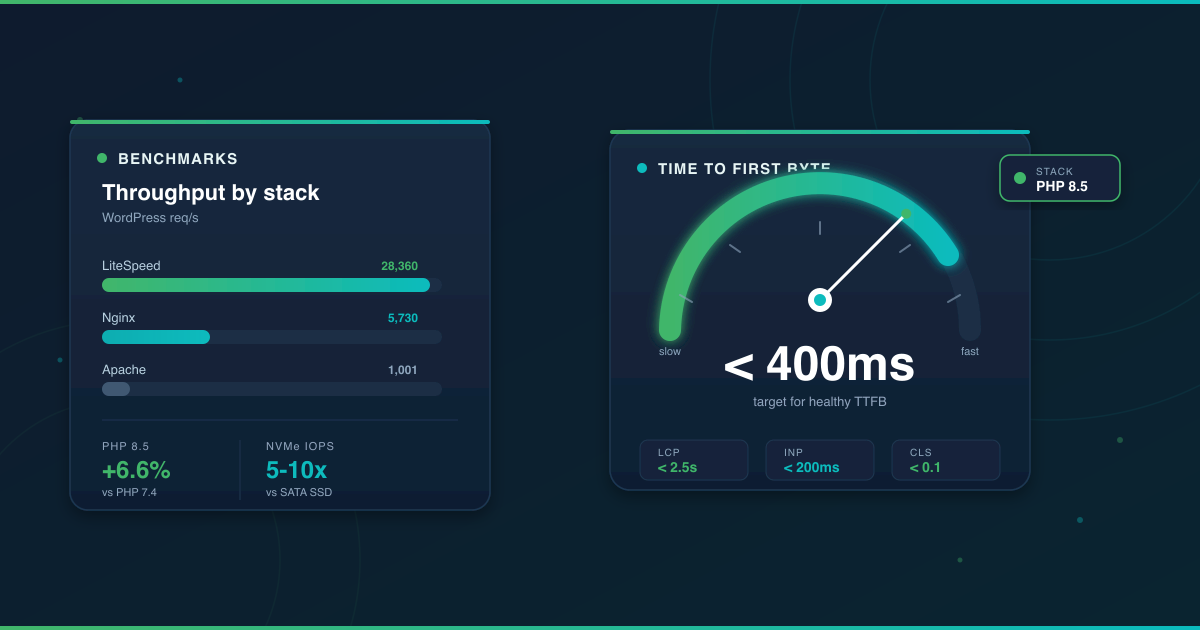



The longer your server takes to respond, the more every other optimization is wasted — and that first response is almost entirely your host’s problem, not yours. This guide shows you exactly where WordPress hosting performance comes from in 2026, with cited benchmarks for PHP versions, storage, and web servers, plus a clear split between fixes you can make yourself and fixes that require a host upgrade.
If your site sits on PHP 7.4, SATA storage, and plain Apache without caching, you’re leaving measurable performance on the table. Here’s what the numbers say, and what to do about them.
What drives hosting performance?
Hosting performance comes down to four pillars: CPU and RAM allocation, storage I/O, the PHP and web-server stack, and network delivery. Upgrade any one in isolation and you’ll see a small lift. Upgrade all four and your Time to First Byte (TTFB) drops into the range where Core Web Vitals become easy to pass.
TTFB is the host-owned foundation. It’s the time between a browser requesting a page and the first byte arriving from your server. Nothing you do inside WordPress — no plugin, no image compression, no theme change — fixes a slow TTFB. That number is set by your hardware, your PHP version, your web server, your database, and how far the data center sits from your reader.
That last point matters most for Sub-Saharan African audiences. A WordPress site hosted in North America or Western Europe can add 200–400ms of latency for a reader in Accra, Lagos, or Nairobi before any processing happens. A content delivery network (CDN) with edge points of presence in the region, or a host with closer data center peering, closes that gap. We cover the regional angle in our guide to web hosting in Ghana vs international hosting.
The good news: once you understand which pillar is weak, the fix is usually specific and cheap. The rest of this guide walks through each one with real numbers.
Benchmark data: what faster WordPress hosting actually looks like
Most performance guides tell you to “use caching” and “optimize images.” Few show you what faster hosting looks like in measured requests per second (req/s) or I/O operations per second (IOPS). Here are the third-party benchmarks that matter for WordPress hosting performance tuning in 2026.
PHP version throughput
According to Kinsta’s published PHP benchmarks, WordPress throughput rises across recent versions:
| PHP version | WordPress req/s | Change vs 7.4 |
|---|---|---|
| 7.4 | 139.06 | baseline |
| 8.2 | 146.09 | +5.1% |
| 8.3 | 142.75 | +2.7% |
| 8.5 | 148.30 | +6.6% |
Source: Kinsta PHP benchmarks (kinsta.com/blog/php-benchmarks).
A 6.6% throughput gain from PHP 7.4 to PHP 8.5 is often a one-click change inside cPanel’s MultiPHP Manager or DirectAdmin’s PHP Selector. No code change. No plugin. If your host still defaults to PHP 7.4, you’re absorbing a compound penalty — older PHP runs slower and loses official security support.
NVMe vs SATA SSD storage
Storage I/O sets the ceiling for your database and filesystem. The Ventus Servers comparison reports NVMe SSDs delivering 400,000–800,000 IOPS on 4K random reads versus roughly 90,000–100,000 IOPS for SATA SSDs — about 5 to 10 times more.
On real MySQL workloads (which is what WordPress runs), the same source reports NVMe delivering around 65% faster complex queries and 80% better write performance than SATA SSDs. For a WooCommerce store, that shows up as faster checkout, cart, and admin operations — the exact pages where speed affects revenue.
Web server stack
Web server choice is the most-debated pillar. LiteSpeed’s own published WordPress benchmark (HTTP/1.1, static-cached) reports:
| Web server | WordPress req/s |
|---|---|
| LiteSpeed Enterprise | ~28,360 |
| Nginx | ~5,730 |
| Apache | ~1,001 |
Source: LiteSpeed Technologies WordPress benchmarks (litespeedtech.com/benchmarks/wordpress).
Methodology caveat: this is LiteSpeed’s own vendor benchmark. Independent tests that turn on Nginx’s FastCGI page cache show the gap narrowing to within a few percentage points between LiteSpeed, OpenLiteSpeed, and a well-configured Nginx stack. The takeaway isn’t that LiteSpeed is 28× Apache in every scenario — it’s that running Apache without a proper cache layer leaves significant throughput unclaimed, and that LiteSpeed ships with cache-level speed by default.
How to read req/s in practical terms
Requests per second reflect peak capacity, not average traffic. A site averaging 10 visitors a minute doesn’t need 28,000 req/s. But when Google sends a rush of crawler hits, or a social share drives a traffic spike, the stack with headroom holds up. The stack without it returns 503 errors and loses rankings.
PHP 8.x configuration for WordPress
A modern PHP version alone isn’t enough — how PHP is tuned matters just as much. If you have cPanel, DirectAdmin, or SSH access, these three settings move the needle fastest.
PHP-FPM worker count
PHP-FPM spawns a fixed pool of worker processes to handle requests. Too few workers and requests queue; too many and each process starves for RAM. The rule of thumb: pm.max_children should equal your available PHP RAM divided by the average memory per process (typically 60–80MB for WordPress).
On a 2GB RAM VPS with 1.5GB allocated to PHP, that’s roughly 20 workers at 75MB each. Tune pm.start_servers, pm.min_spare_servers, and pm.max_spare_servers in proportion (start around 25% of max, min around 15%, max around 50%).
OPcache for WordPress
OPcache stores pre-compiled PHP bytecode in memory so WordPress doesn’t recompile files on every page load. Two settings matter most:
opcache.memory_consumption— set to 256MB for a typical WordPress site, 512MB if you run WooCommerce with heavy plugin use.opcache.max_accelerated_files— set to 10,000 or higher. WordPress plus plugins can easily exceed 7,000 PHP files, and hitting the ceiling silently forces recompiles.
Check OPcache status by creating a small PHP file that calls opcache_get_status() — if hit rate is below 95%, your memory or file limits are too low.
Object cache: Redis vs Memcached
WordPress’s default object cache lives in memory only for the duration of one request. A persistent object cache (Redis or Memcached) keeps database results in RAM across requests, cutting MySQL queries by 60–90% for repeat visits.
- Redis — richer data structures, atomic operations, persistence to disk optional. Better for WooCommerce (cart, session state, transients).
- Memcached — simpler, lighter, distributed-friendly. Great for plain blogs and content sites.
For most WordPress sites in 2026, Redis is the default choice. Install the Redis Object Cache plugin and point it at your host’s Redis socket. If your host doesn’t offer Redis, that’s a signal to look at managed WordPress hosting — it’s table-stakes now.
Still on PHP 7.4? Ask your host
Log into your control panel, look for “Select PHP Version” (cPanel) or “PHP Selector” (DirectAdmin), and switch to the highest stable 8.x available. If the option isn’t there, open a support ticket and ask. Any host that can’t offer PHP 8.x in 2026 isn’t tuned for WordPress.
Caching: which plugin should you use?
A caching plugin is non-negotiable for WordPress hosting performance. The three you’ll actually choose between:
LiteSpeed Cache (free). Only works on LiteSpeed or OpenLiteSpeed servers, but when it does, it’s the fastest option available — caching happens at the server layer, not inside PHP. If your host runs LiteSpeed, this is the default choice. No paid tier, full feature set.
W3 Total Cache (free). Works on any server. Very deep configuration surface — page cache, object cache, database cache, minification, CDN integration. The trade-off is complexity: misconfigured W3TC is slower than no cache at all. Budget an hour to read the docs before you enable anything.
WP Rocket (paid). Works on any server. The friendliest configuration experience of the three — sensible defaults work out of the box. You pay for the convenience and the opinionated tuning. The right choice for site owners who don’t want to learn caching internals.
Plugin-level cache vs server-level cache
Server-level caching (LiteSpeed Cache, Nginx FastCGI cache, Varnish) serves pages without ever starting PHP. Plugin-level caching (W3TC, WP Rocket in default mode) still runs some PHP on every request to check if a cached page exists.
The difference is substantial at traffic spikes. Server-level cache can serve tens of thousands of requests per second from a modest VPS. Plugin-level cache tops out far earlier because PHP-FPM becomes the bottleneck. When both are available, choose server-level.
If you’re already diagnosing host-side bottlenecks — slow TTFB, PHP stuck on 7.4, no NVMe storage — upgrading hosts is often faster than patching around them. Luminweb’s managed WordPress hosting plans run modern PHP, NVMe storage, and LiteSpeed caching by default, with Ghana-based support to walk you through the move.
Core Web Vitals on WordPress hosting
Core Web Vitals (CWV) are Google’s set of user-experience metrics. Pass them and you earn a ranking signal; fail them and you lose one. The 2026 “good” thresholds, per Google Search Central:
- LCP (Largest Contentful Paint): under 2.5 seconds
- INP (Interaction to Next Paint): under 200 milliseconds
- CLS (Cumulative Layout Shift): under 0.1
INP replaced First Input Delay (FID) on March 12, 2024, as the responsiveness metric — if you’re working from an older tutorial that mentions FID, it’s outdated.
Host-side vs site-side: who owns what
This is the clearest way to triage a failing CWV score. Not every failure is your fault, and not every failure is your host’s fault.
Host-side responsibilities (fix by upgrading host or plan):
- TTFB — determined by CPU, RAM, PHP version, database I/O
- HTTP/3 support — reduces connection overhead for mobile users
- Server-level caching — LiteSpeed, Nginx FastCGI, Varnish
- CDN availability and edge PoP coverage
- Data center proximity to your primary audience
Site-side responsibilities (fix inside WordPress):
- Image optimization — convert to WebP or AVIF, serve responsive sizes
- JavaScript bundle size — audit plugins, remove unused scripts
- Third-party scripts — analytics, chat widgets, ad tags all block rendering
- Layout shift from ads, late-loading embeds, or missing image dimensions
How to tell which side a failing score points to
Run Lighthouse (Chrome DevTools → Lighthouse tab) or PageSpeed Insights and open the waterfall.
- If the first bar (server response / TTFB) is over 600ms, your host is the bottleneck. No site-side fix will rescue this score.
- If TTFB is under 400ms but LCP is still over 2.5s because large images or render-blocking scripts delay paint, that’s site-side. Fix images and scripts first.
- If INP is high, the culprit is usually heavy JavaScript — a bloated theme, too many plugins, or a poorly written third-party tag.
- If CLS is high, look for images without width/height attributes, ads that push content down, or late-loading embeds.
Once you know which side owns the problem, the fix path is obvious.
Scaling for high-traffic WordPress sites
Shared hosting is designed for sites that peak in the tens of concurrent visitors. When you consistently push beyond that — flash sales, viral posts, sustained organic growth — the signals are unmistakable:
- 522 or 504 errors under load
- “Connection limit reached” messages in your host’s logs
- Site admin becomes sluggish even when the front end feels fine
- WooCommerce checkout times out during promotions
When you see these, the answer isn’t another caching plugin. It’s dedicated resources.
Upgrading to a VPS
A virtual private server (VPS) gives you dedicated CPU and RAM, NVMe storage, and root access to tune the stack exactly for WordPress. You stop sharing resources with hundreds of other sites, and your ceiling lifts from “a few dozen concurrent visitors” to “a few thousand.” We cover the signals and the migration path in our guide on when to upgrade to VPS hosting.
Horizontal scaling signals
If a single VPS is already heavily loaded and WooCommerce is central to your business, the next step is horizontal scaling: multiple WordPress nodes behind a load balancer, sharing an external object cache (Redis) and a separate database server. That’s a different architecture and a different budget. The trigger is when a vertical VPS upgrade no longer gets you through peak traffic.
Website speed and SEO: why it still drives rankings
Core Web Vitals are a confirmed Google ranking signal. That alone justifies the tuning. But the user-experience effects matter more over time:
- Slow sites lose visitors before they see your content — bounce rates climb sharply as load time crosses the three-second mark.
- Time-on-page and pages-per-session both drop when pages feel sluggish.
- Mobile users abandon faster than desktop users, and most traffic from Ghana, Nigeria, and Kenya is mobile.
Mobile-first indexing means Google crawls and ranks your mobile site as the primary version. A site that’s fast on a Lagos 4G connection with WebP images and a CDN will outrank a site that only looks fast on a home fibre link. We cover the mobile-first approach in our mobile-first web design guide.
Speed isn’t a nice-to-have ranking factor — it’s the compounding one. Every millisecond you shave off TTFB pays dividends across bounce rate, conversion, and rankings.
For a deeper look at the platform itself, see our pillar on how WordPress hosting works, our guide to essential WordPress plugins, and our walkthrough on how to install WordPress.
FAQs
Which PHP version is fastest for WordPress in 2026?
PHP 8.5 delivers the highest WordPress throughput in Kinsta’s published benchmarks — 148.30 req/s versus 139.06 on PHP 7.4, a 6.6% improvement. PHP 8.2 and 8.3 both outperform 7.4 as well. If your host offers 8.x, use it.
Is LiteSpeed really faster than Nginx?
In LiteSpeed’s own WordPress benchmark, LiteSpeed runs about five times Nginx’s throughput. Independent tests that enable Nginx’s FastCGI page cache show the gap closing to within a few percent. The practical answer: LiteSpeed ships fast by default, while Nginx needs careful configuration to match it. For most WordPress sites, LiteSpeed is the path of least effort.
Does NVMe actually matter for a small WordPress site?
For a low-traffic blog with plenty of caching, the NVMe benefit is real but modest. For WooCommerce, membership sites, or any setup with heavy database writes, NVMe delivers roughly 65% faster complex queries and 80% better write performance than SATA SSDs — differences you’ll feel on checkout and admin pages.
How do I know if my host is the bottleneck?
Run PageSpeed Insights on your homepage and read the server response (TTFB) number. Under 400ms suggests your host is doing its job. Over 600ms, especially if the same URL hits a cached page, points at the host — hardware, PHP version, or data center distance. A 900ms+ TTFB is almost always a host problem, not a site problem.
Will a CDN fix slow TTFB?
A CDN caches static files (images, CSS, JavaScript) close to your reader, cutting file-download latency. It doesn’t fix the slow generation of the HTML page itself — that still hits your origin server. For a reader in Accra loading a site hosted in Texas, a CDN helps the page finish loading but doesn’t change how long the server takes to produce the HTML. Pair a CDN with server-level caching to address both.
Bottom line
WordPress hosting and performance tuning in 2026 comes down to four stacked upgrades: PHP 8.x, NVMe storage, a cache-first web server (LiteSpeed or Nginx with FastCGI), and a CDN with regional edge coverage. Layer site-side fixes — image formats, script audits, layout stability — on top, and Core Web Vitals move from “failing” to “good” without heroics.
The benchmarks are public. The fixes are specific. The only question is which pillar is weakest on your current stack — and whether your host can address it, or whether it’s time to move.
Need help diagnosing whether your performance issue is host-side or site-side? Contact Luminweb — our Ghana-based support team will review your setup and recommend the smallest change that moves the needle.
