
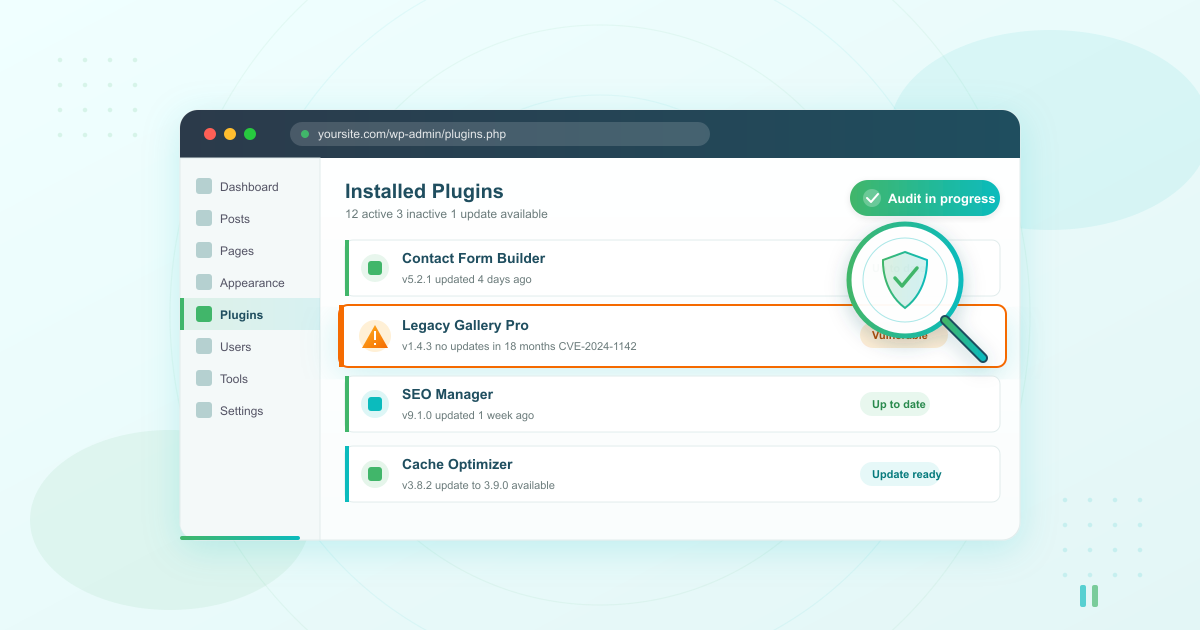



If your WordPress site gets hacked this year, a plugin is almost certainly to blame. Patchstack’s 2024 State of WordPress Security report found that 96% of all disclosed WordPress vulnerabilities came from plugins — compared to just 4% from themes and only 7 issues in WordPress core itself. A monthly WordPress plugin security audit is the fastest way to shut that door.
This guide walks you through a practical WordPress plugin security audit workflow any site owner in Ghana, Nigeria, or Kenya can run on a shared hosting plan. No command line. No paid tools required. Just a clear checklist you can finish before your morning coffee gets cold. It’s one of the most important items in our broader WordPress security checklist.
What Is a WordPress Plugin Security Audit?
A WordPress plugin security audit is a structured review of every plugin installed on your site to confirm each one is updated, actively maintained, and free of known security vulnerabilities. It checks whether any of your plugins have unpatched flaws attackers could exploit — and lets you decide whether to update, replace, or remove each one.
Think of it as a monthly health check for the moving parts of your site. You’re not becoming a security engineer. You’re catching the obvious risks before they become an incident.
How Often Should You Audit Your WordPress Plugins?
Run a full WordPress plugin security audit monthly for active business sites, and at least quarterly for low-traffic brochure sites. Also run one immediately after installing any new plugin, changing themes, or restoring from a backup.
The reason is volume. Patchstack cataloged 7,966 new WordPress vulnerabilities in 2024 — a 34% jump over the previous year. That’s more than 20 new issues disclosed every single day. A monthly rhythm means you’re never more than 30 days behind the latest known risks. Pair it with your regular WordPress backups so you always have a clean restore point before making changes.
Step 1: Take Inventory of Every Installed Plugin
You cannot audit what you haven’t counted. Start your WordPress plugin security audit by building a simple list of every plugin on your site — active, inactive, and the ones you forgot were even there.
Log in to your WordPress dashboard and go to Plugins → Installed Plugins. For each one, write down:
- Plugin name
- Current version number
- Active or inactive status
- Last updated date (shown on the WordPress.org plugin page)
- Author and whether the author is still active
A free spreadsheet works fine. If you have more than 20 plugins installed, that’s already a warning sign — most business sites need fewer than 15. Compare your list against our guide to essential WordPress plugins for business websites and consider deactivating anything that isn’t earning its place. Every plugin you remove is one less attack surface to defend.

Step 2: Run a Free WordPress Plugin Vulnerability Scan
Now check your plugin list against known vulnerability databases. You do not need a paid WordPress plugin vulnerability scanner to start.
Option 1: WPScan vulnerability database. WPScan maintains the largest public database of WordPress security issues, with 71,890 cataloged core, plugin, and theme vulnerabilities at the time of writing. You can search the free database at wpscan.com by plugin name and see every known CVE, which versions are affected, and whether a patch exists.
Option 2: Your hosting control panel’s built-in scanner. Quality hosts run server-side malware scanning on a schedule whether you ask for them to or not. If your site is on LUMINWEB WordPress Hosting, Imunify360 already scans your files for known malicious patterns and quarantines anything suspicious. Check your cPanel or DirectAdmin dashboard for the Imunify360 section.
Option 3: Free online scanners. Tools like Sucuri SiteCheck and the free tier of Wordfence give you a surface-level scan without installing anything. They won’t catch everything a server-side scanner does, but they’ll flag obvious issues like outdated WordPress core or publicly known malicious code.
Run at least two of these on every audit. If any of them flag a plugin, move to Step 5 for the decision framework.
Step 3: Check for Abandoned Plugins
Abandoned plugins are the silent killers of WordPress plugin security. A plugin without recent updates is a plugin whose author has stopped fixing vulnerabilities — even if the code works fine today.
For each plugin on your inventory, visit its page on wordpress.org/plugins/ and check three things:
- Last updated date. If the plugin hasn’t had an update in more than 12 months, treat it as abandoned.
- Tested up to. If the plugin hasn’t been tested with the current major WordPress version, that’s another red flag.
- Removal notice. WordPress.org occasionally removes plugins that violate guidelines or go unmaintained. If the plugin page is gone entirely, your installed copy is no longer receiving any updates at all — automatic or manual.
Abandoned plugins don’t always have known vulnerabilities today. They almost always have one tomorrow. Replace them before that happens.
Need built-in plugin scanning? LUMINWEB WordPress Hosting includes Imunify360 server-side protection by default — malware scanning, vulnerability detection, and automatic backups on every plan.
Step 4: Review What Your Hosting Provider Already Secures
Before you buy another paid security plugin, check what your host already covers. This is the step most WordPress security guides skip — and it’s the reason so many small business owners end up paying for tools they don’t need.
Good shared hosting already includes several layers of protection:
- Server-side malware scanning (Imunify360, ClamAV, or similar) — scans files for known malicious signatures before your site is ever touched
- Web Application Firewall (ModSecurity) — blocks known attack patterns at the server level, before a request even reaches WordPress
- Brute-force login protection — throttles or bans IPs that hammer wp-login.php
- Automated daily backups — your safety net when something does slip through
- Free SSL certificates — encrypts traffic and prevents credential interception
If your current host doesn’t include these, that’s a bigger security problem than any single plugin. Our guide to web hosting security explains the server-side layers in more detail, and if you haven’t set up WordPress yet, start with our WordPress installation guide on a host that builds security in from day one.
Step 5: Decide — Update, Replace, or Remove
This is where most audits fall apart. You’ve found a vulnerable or outdated plugin. Now what?
Run it through this decision framework:
| Situation | Action |
|---|---|
| Patch is available and plugin is actively maintained | Update — back up first, then update via Plugins → Installed Plugins |
| Plugin has a known vulnerability, no patch yet, actively maintained | Wait and watch — deactivate if the vulnerability is being actively exploited, otherwise monitor the plugin’s changelog |
| Plugin is abandoned (no updates in 12+ months) | Replace — find an actively maintained alternative with similar features |
| Plugin is removed from WordPress.org entirely | Remove immediately — no future patches will ever come |
| Plugin works but you don’t actually use its features | Remove — every inactive plugin is an unnecessary risk |
Always back up before taking any action. Updates can break sites, replacements can break layouts, and removals can delete data. A restorable backup turns every one of those risks into an inconvenience instead of a catastrophe.

Free vs Paid WordPress Plugin Vulnerability Scanners
You don’t need to spend money to run a thorough WordPress plugin security audit. Here’s how the main options compare:
| Tool | Cost | What It Does | Best For |
|---|---|---|---|
| WPScan database | Free | Searchable CVE database | Manual checks by name |
| Sucuri SiteCheck | Free | Remote surface scan | Quick weekly spot checks |
| Wordfence (free tier) | Free | Plugin-based scan and firewall | Basic ongoing monitoring |
| Imunify360 (hosting-included) | Included with quality hosts | Server-side malware and vulnerability scanning | Set-and-forget protection |
| Patchstack (paid) | Subscription | Virtual patching for known issues | Agencies managing many sites |
| WPScan API (paid) | Subscription | Automated scheduled scans | Freelancers automating audits |
For most small business sites, the combination of WPScan’s free database plus Imunify360 on your hosting account covers most of what paid tools offer. Move to a paid WordPress plugin vulnerability scanner only when you’re managing multiple client sites or running an e-commerce store handling customer payment data.
Monthly Plugin Audit Checklist
Here’s the whole WordPress plugin security audit process as a checklist you can copy into your project tracker:
- Back up your site — full database and files, verified restorable
- Export plugin list — name, version, active status, last update date
- Run WPScan search on each plugin name
- Check Imunify360 or host scanner results
- Run Sucuri SiteCheck or Wordfence scan
- Flag abandoned plugins — no updates in 12+ months
- Check WordPress.org page for every flagged plugin
- Update everything with available patches
- Replace abandoned plugins with maintained alternatives
- Remove unused or inactive plugins
- Re-test the site after changes
- Log the audit date in your spreadsheet
Bookmark this checklist. If you stick to it monthly, you’ll head off the vast majority of plugin-driven security incidents before they ever reach your site.
When a Plugin Audit Isn’t Enough
Auditing your plugins is essential, but it’s one layer of a bigger picture. Malware can reach your site through a stolen password, a compromised theme, or a server-level exploit that has nothing to do with plugins at all. That’s why hosting-side protection matters.
LUMINWEB WordPress Hosting includes Imunify360 server-side malware scanning, a managed Web Application Firewall, automatic daily backups, and free SSL on every plan. You get the server-side protection that paid security plugins try to replicate — built in, no configuration required. For the full picture of what to protect, return to our complete WordPress security checklist.
Related Articles
- WordPress Login Security: Stop Brute Force Attacks Fast
- WordPress Site Hacked? What to Do First (Recovery Guide)
- Best WordPress Security Plugins Compared (Free vs Premium 2026)
- WordPress Backup Strategy: How Often, Where, and How to Test
Secure Your WordPress Site From the Ground Up
Plugins are where most WordPress attacks start, but they don’t have to be where your site ends. A monthly WordPress plugin security audit using free tools takes less than an hour. Pair it with hosting that secures the server layer, and you’ve covered the two biggest attack surfaces on any WordPress site.
Ready to build on a foundation that’s secure by default? Launch your site on LUMINWEB WordPress Hosting — Imunify360 malware scanning, automatic backups, and free SSL included on every plan. No surprises, no hidden fees.
