
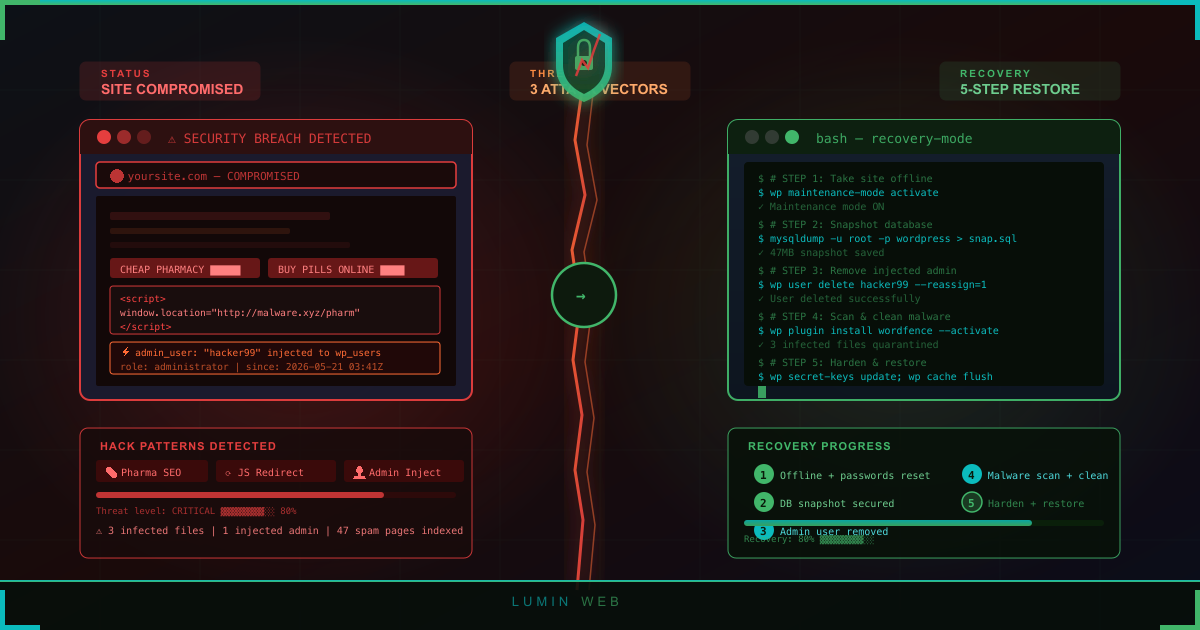



Your WordPress site is hacked, and the first question is what to do right now. In the next 15 minutes, do four things: stay calm and write down what you see, contact your hosting provider, change your WordPress admin and hosting passwords, then decide between restoring from a clean backup or cleaning the site manually. Everything else in this guide expands those four moves into a recovery path you can run yourself, on shared hosting, without paying for an emergency cleanup service.
This is the playbook we walk Ghana, Nigeria, and Kenya business owners through when their WordPress site goes down to a hack. It uses free tools, the malware scanner your hosting account already includes, and a clear decision tree so you don’t waste time on the wrong path.
How Do I Know If My WordPress Site Is Actually Hacked?
Not every problem is a hack. A white screen is usually a plugin conflict. A 500 error is often a PHP version mismatch. Before you panic, check for the actual signs of compromise.
The official WordPress.org recovery handbook lists seven Indicators of Compromise (IoCs) — clear signals that someone has broken in:
- Your site is blacklisted by Google or Bing in search results
- Your hosting provider has disabled the site
- The site is flagged for distributing malware
- Visitors report antivirus warnings when they load your pages
- You receive notices that the site is attacking other sites
- Unauthorized user accounts or unexpected file changes appear
- Visible defacement shows up when you load the homepage in a browser
An Indicator of Compromise (IoC) is just security jargon for evidence that something hostile has happened. If you see one or more of these signs, treat it as a confirmed hack and start the recovery steps below.
Why WordPress Sites Get Hacked
The attack surface has grown sharply. In 2025, 11,334 new vulnerabilities were discovered in the WordPress ecosystem — a 42% jump over 2024. Of those, 91% were found in plugins, with only six low-priority issues in WordPress core itself.
The takeaway is simple: WordPress core is not the weak link. Plugins and themes are. Every plugin you install adds code your visitors run, and every outdated plugin is a potential door.
Speed matters too. The median time from vulnerability disclosure to mass exploitation in 2025 was just five hours. That means an unpatched site can be compromised before most owners even see the security alert email. Want to shrink that window? Start with our guide on how to audit your WordPress plugins for security vulnerabilities.
Step 1: Stay Calm and Document Everything
Before you change a single setting, write down what you see. Open a notes app or grab a sheet of paper.
Note the time you discovered the issue. List every symptom — defacement, redirect, antivirus warning, hosting suspension email. Record any recent changes you made: a new plugin, a theme update, a password reset, a new admin user.
This documentation is your forensic baseline. If you need to call in a professional later, or file an insurance claim, or explain to your hosting provider what happened, you will need it. Skipping this step costs nothing in the moment and saves hours of confusion later.
Step 2: Contact Your Hosting Provider
Your hosting provider may already know. Reputable shared hosts run server-level malware scanners that flag infected accounts automatically — and they may have already disabled your site to contain the damage to other customers on the same server.
Open a support ticket. Tell them what you observed, when, and ask three questions: Has the account been flagged on your end? Is the site currently disabled? Do you have a recent clean backup on file that you can restore from?
A good hosting partner will give you a straight answer to all three. LuminWeb’s support team handles exactly this kind of conversation every week — see web hosting security for how host-level defenses work.
Step 3: Change Your Passwords (Round 1)
Change every password connected to the site. Not just WordPress admin — every credential that touches the hosting account.
The full list:
- WordPress admin user (and any other admin accounts you control)
- Hosting control panel (cPanel or DirectAdmin)
- FTP and SFTP accounts
- MySQL database user
- The email address linked to your WordPress admin account
Use strong, unique passwords for each. A password manager makes this fast. Yes, you will change them again later — that is intentional, and we explain why in Step 8.
Step 4: Take a Backup of the Infected Site
This sounds wrong. Why back up an infected site? Three reasons.
First, it preserves evidence. If something in the cleanup goes wrong, you can roll back to a known state instead of a broken one. Second, the infected files contain forensic data — log entries, file timestamps, attacker code — that you may need to identify the entry point. Third, if your only “clean” backup turns out to also be infected, you still have something to work from.
Most shared hosting control panels have a backup tool built in. cPanel has a Backup Wizard. DirectAdmin has Create/Restore Backups. Use whichever your account includes. For a deeper walkthrough, see our WordPress backup guide.
Label the backup clearly — “infected-site-YYYY-MM-DD” — and store it somewhere outside the hosting account.
Step 5: Decide — Restore From Backup, or Clean Manually?
This is the most important decision in the whole recovery, and most guides bury it.
Ask one question: Do you have a clean backup that predates the hack?
- Yes → Path A: Restore from backup. Fastest path. Skip to Step 6 after you finish.
- No, or unsure → Path B: Manual cleanup with free tools.
“Clean” means you can verify the backup was taken before any of the indicators of compromise appeared. Check your hosting backup dates. Check the modification times on key files like wp-config.php and .htaccess. If the backup predates the earliest sign of a hack, it is clean.

Path A: Restore From a Clean Backup
This is the fast path — usually 15 to 30 minutes from start to finish.
- In cPanel or DirectAdmin, open the backup tool and select your verified clean backup
- Restore both the file system and the database — partial restores leave gaps
- Once restored, log into WordPress and check the admin dashboard, plugin list, and user list for anything unexpected
- Run the malware scan from Step 7 anyway, just to confirm the restored state is genuinely clean
- Continue with Step 6 (rotate secret keys), Step 7 (update everything), and Step 8 (passwords round 2) before going live
If the backup turns out to also be infected — meaning the hack happened earlier than you thought — fall back to Path B.
Path B: Manual Cleanup With Free Tools
No clean backup? You can still clean a hacked WordPress site yourself. The tools are free and the work is methodical, not magical.
Scan from the outside. Sucuri SiteCheck is a free remote malware scanner that checks your site’s browser-visible code for malware, blacklist status, and outdated software — with no account required. Visit sitecheck.sucuri.net, enter your URL, and read the report. It will tell you if Google has blacklisted you and which obvious infections it can see.
Scan from the inside. Install the free version of Wordfence Security from the WordPress plugin directory. Wordfence has 5+ million active installations, and the free tier includes a server-side scanner that compares your site files against clean versions in the WordPress repository. It will flag changed core files, suspicious code in themes and plugins, and known backdoor signatures.
Use your host’s built-in scanner. This is the step most guides skip. Reputable shared hosts include server-level malware scanning — Imunify360 on cPanel is the most common. Log into your hosting control panel and look for “Imunify360,” “Virus Scanner,” or “Malware Scanner.” Run a full scan of your account. It will catch infected files that file-comparison scanners miss.
LuminWeb WordPress Hosting includes Imunify360 server-level malware scanning and automatic backups by default — two of the tools you’re using right now to recover, bundled in from day one.
Replace WordPress core files manually. Download a fresh copy of WordPress from wordpress.org. Using SFTP (not the WordPress admin reinstall), drag and drop the new wp-admin and wp-includes folders over your existing ones. Do not touch wp-content — that holds your themes, plugins, and uploads.
Check the high-risk files. Open .htaccess in your site root and look for unfamiliar redirects or RewriteRule lines. Check index.php, header.php, footer.php, and functions.php in your active theme for code blocks you did not write — especially any obfuscated PHP that uses base64-encoded strings to hide its real behavior.
Delete unused plugins and themes. Inactive plugins and themes are the single most common hiding place for backdoors. If you are not actively using it, delete it — do not just deactivate it.
Audit users in phpMyAdmin. Open the wp_users table and look for admin accounts you do not recognize. Delete them. Then check wp_usermeta for any orphaned entries.

Step 6: Rotate WordPress Secret Keys
Open wp-config.php via SFTP. Find the block of eight constants starting with AUTH_KEY, SECURE_AUTH_KEY, and so on.
Visit the WordPress salt generator URL printed as a comment right above that block, copy the new values, and paste them in. This forces every active session to log out — including the attacker’s, if they still hold a valid cookie. The official WordPress.org recovery handbook calls this out as part of the “Reset all Access” step for exactly this reason.
Step 7: Update Everything
Log into the WordPress admin. Update WordPress core, every plugin, and every theme. No exceptions.
If a plugin has not been updated by its developer in over a year, replace it with an actively maintained alternative. Abandoned plugins are how 91% of WordPress vulnerabilities enter sites. Our essential WordPress plugins for business websites guide lists actively maintained options for the common categories.
Step 8: Change Your Passwords (Round 2)
The official WordPress.org recovery FAQ explicitly recommends changing passwords twice — once when you discover the hack, and again after the site is cleaned.
The reason is straightforward. If the attacker still had access during your first password change, they could have captured the new password. Round 2 happens after the site is clean and they are locked out, so the new credentials stay yours.
While you are at it, turn on two-factor authentication for the WordPress admin. See our guide on WordPress login security for the specific plugins and settings.
Step 9: Ask Your Hosting Provider for a Rescan
Go back to your hosting support ticket. Tell them the site is clean and ask for a fresh server-side scan of the account. Most reputable shared hosts will run it and clear any internal flags once the scan comes back clean.
This matters for two reasons. First, it confirms your work — if Imunify360 still detects something, you know you missed a file. Second, hosts sometimes apply quiet restrictions to flagged accounts (rate limits, outbound mail blocks) that only lift after a clean rescan.
Step 10: Remove Your Site From Google’s Blocklist
If Google flagged your site during the hack, visitors will still see a red “Deceptive site ahead” warning until you formally request a review.
Log into Google Search Console. Open the Security & Manual Actions → Security Issues report. If issues are listed, click Request a Review, describe what you cleaned and the steps you took, then submit. Google typically responds within a few days. Bing has a parallel process in Bing Webmaster Tools.
This is the step that actually restores your search traffic. Without it, your site is technically clean but still untrustworthy to search engines.
Can I Just Restore a Backup?
Yes — if the backup predates the hack and you harden the site before you put it back online.
A restore alone is not enough. The same vulnerability that let the attacker in the first time is still there. Before you go live with a restored backup: update WordPress core, update every plugin, rotate the secret keys, change all passwords, and run a fresh scan. Otherwise you will be rewriting this guide in a week.
How Much Does It Cost to Fix a Hacked WordPress Site?
Two paths, two budgets.
The DIY path costs nothing but your time. Free scanners (Sucuri SiteCheck, Wordfence free, Imunify360 from your host), free tools (SFTP, phpMyAdmin), free WordPress core download. If you have the four to eight hours and you are willing to follow steps carefully, this path works for most shared-hosting sites.
The paid path ranges from a few hundred to over a thousand US dollars depending on the vendor and complexity. Worth it if you run an active e-commerce site, if every hour of downtime costs revenue, or if you have already tried the DIY path and the site keeps getting reinfected.
Most small business owners on shared hosting can handle this themselves with the steps above. Reach for the paid path only when the time cost or risk is genuinely higher than the cleanup fee.
When to Call a Professional
There are four situations where you should stop and bring in help instead of pushing further on your own:
- An active data breach involving customer information — escalate immediately
- A live e-commerce site processing transactions — every hour of downtime is real money
- Persistent reinfection after a careful cleanup — there is something deeper you have not found
- You cannot access cPanel, SFTP, or the WordPress admin at all — recovery requires those entry points
If any of these apply, contact our support team and explain the situation. We can guide you through the next steps or take over the cleanup directly.
Preventing the Next Hack
Once the site is clean, your job is to make sure this never happens again. The fixes are the same ones in our WordPress security checklist — the 10-step guide that prevents the most common attack paths.
The short version: keep WordPress core, plugins, and themes updated automatically. Use strong, unique passwords with two-factor authentication. Pick a host that runs server-level malware scanning by default. Run regular backups stored outside the hosting account. Audit your plugins quarterly and remove anything you do not actively use.
Layered defense matters because no single tool catches everything — only 26% of vulnerability attacks in 2025 were successfully blocked by common defenses like web application firewalls and Cloudflare. Host-level scanning, plugin discipline, and good password hygiene work together to close the gaps.
FAQ
What is the first thing to do when your WordPress site is hacked?
Stay calm and document what you see. Then contact your hosting provider, change your WordPress admin and hosting passwords, and decide between restoring from a clean backup or cleaning the site manually.
How do I know if my WordPress site has been hacked?
Look for the seven Indicators of Compromise listed in the WordPress.org handbook: Google or Bing blacklist, host disabled the site, malware distribution flag, antivirus warnings reported by visitors, attack notices, unauthorized users or file changes, and visible defacement.
Can I restore a backup to fix a hacked WordPress site?
Yes, if the backup predates the hack. After restoring, you still need to update everything, rotate your secret keys, change all passwords, and run a fresh malware scan before going live — otherwise the same vulnerability will let the attacker back in.
How do I clean a hacked WordPress site for free?
Use Sucuri SiteCheck for an external scan, the free Wordfence plugin for an internal scan, and your hosting account’s built-in malware scanner (Imunify360 on most cPanel hosts). Replace WordPress core files via SFTP, audit .htaccess and theme files, delete unused plugins, and check the wp_users table for unknown admins.
How much does it cost to fix a hacked WordPress site?
DIY recovery using free tools costs nothing but four to eight hours of your time. Paid cleanup services range from a few hundred to over a thousand US dollars. Most shared-hosting site owners can handle the cleanup themselves with the right guide.
How do I get my site off the Google blocklist?
Clean the site first, then open Google Search Console, navigate to Security & Manual Actions → Security Issues, click Request a Review, describe the cleanup you performed, and submit. Google typically responds within a few days.
How do I stop my WordPress site from being hacked again?
Keep WordPress core, plugins, and themes updated. Use strong unique passwords with two-factor authentication. Choose hosting that runs server-level malware scanning. Run regular backups. Delete plugins you are not actively using.
How long does it take to recover a hacked WordPress site?
If you have a clean backup, 15 to 30 minutes. Manual cleanup typically takes four to eight hours for a single site, depending on how deep the infection runs and how many plugins you need to audit.
Related Articles
- WordPress Plugin Security Audit: Step-by-Step 2026 Guide
- WordPress Login Security: Stop Brute Force Attacks Fast
- Best WordPress Security Plugins Compared (Free vs Premium 2026)
- WordPress Backup Strategy: How Often, Where, and How to Test
Get Recovery and Prevention in One Place
Host your WordPress site on LuminWeb WordPress Hosting — Imunify360 malware scanning, automatic backups, and free SSL are included by default, so the next attempted hack is caught faster, or prevented entirely. Your trusted hosting partner, built for African businesses. 30-day money-back guarantee.

